
OpenClaw TTS Runbook: Voice Setup for Every Provider
About this series: Each post in this series is a complete technical runbook — not a story, but instructions for an agent to execute directly. Copy the runbook, replace the placeholders (
YOUR_FISH_API_KEY,YOUR_VOLC_APP_ID, etc.), hand it to Claude Code, and let it run. The story behind this one is at OpenClaw Field Notes.
OpenClaw TTS: Voice Setup for Every Provider
This document covers text-to-speech setup for OpenClaw across all five supported providers: Fish Audio, Volcano Engine v2 (with emotion control), ElevenLabs, OpenAI, and Edge TTS. Each section is self-contained — jump to the provider you need.
Table of Contents
- Prerequisites
- Fish Audio Setup
- Volcano Engine v2 Setup (Emotion Control)
- ElevenLabs Setup
- OpenAI TTS Setup
- Edge TTS Setup (No API Key)
- Fallback Configuration
- Slash Commands Reference
- Troubleshooting Checklist
1. Prerequisites
Before configuring any TTS provider:
- The framework is installed and running.
- You have access to
openclaw.json(the gateway configuration file). - You know how to restart the gateway or hot-reload with
kill -USR1.
TTS config lives under messages.tts in openclaw.json. All provider sections are nested under this path.
2. Fish Audio Setup
Fish Audio outputs OGG/Opus — ideal for Telegram voice bubbles without transcoding.
Step 1. Get an API key
Create an account at fish.audio and get an API key from the dashboard.
Step 2. Pick a voice model
Browse the voice library or clone your own. Copy the reference ID.
Step 3. Add to openclaw.json
{
  messages: {
    tts: {
      auto: "always", // or "tagged" (LLM decides when) / "inbound" (voice replies only)
      provider: "fishaudio",
      fishaudio: {
        apiKey: "YOUR_FISH_API_KEY",       // or set env FISH_API_KEY
        referenceId: "YOUR_VOICE_REFERENCE_ID", // from fish.audio voice library
      },
    },
  },
}
Step 4. Restart the gateway
kill -USR1 $(pgrep -f openclaw) # hot reload
Step 5. Verify
/tts status
Expected output: Provider: fishaudio (configured).
Test with:
/tts audio Hello from Fish Audio
Config fields
| Field | Env fallback | Description |
|---|---|---|
apiKey | FISH_API_KEY | Fish Audio API key |
referenceId | — | Voice model ID from fish.audio (leave empty for default) |
API details
POST https://api.fish.audio/v1/tts
Headers: Authorization: Bearer <apiKey>, model: s1
Body: { "text": "...", "reference_id": "...", "format": "opus", "opus_bitrate": 64 }
Returns raw Opus audio buffer. Output file is .ogg — Telegram sends it as a voice bubble.
Gotchas
- Fish Audio does not support emotion markers.
[brackets]will be spoken literally. - Output is OGG/Opus — Telegram shows it as a voice bubble automatically.
- If
referenceIdis empty, Fish Audio uses its default voice.
3. Volcano Engine v2 Setup (Emotion Control)
Volcano Engine v2 uses the seed-tts-2.0 voice cloning model with LLM-driven emotion control via the context_texts API parameter. The LLM prepends [emotion] markers before each sentence, the framework parses them, calls the API per-sentence with individual emotion instructions, then concatenates the MP3 buffers into a single voice message.
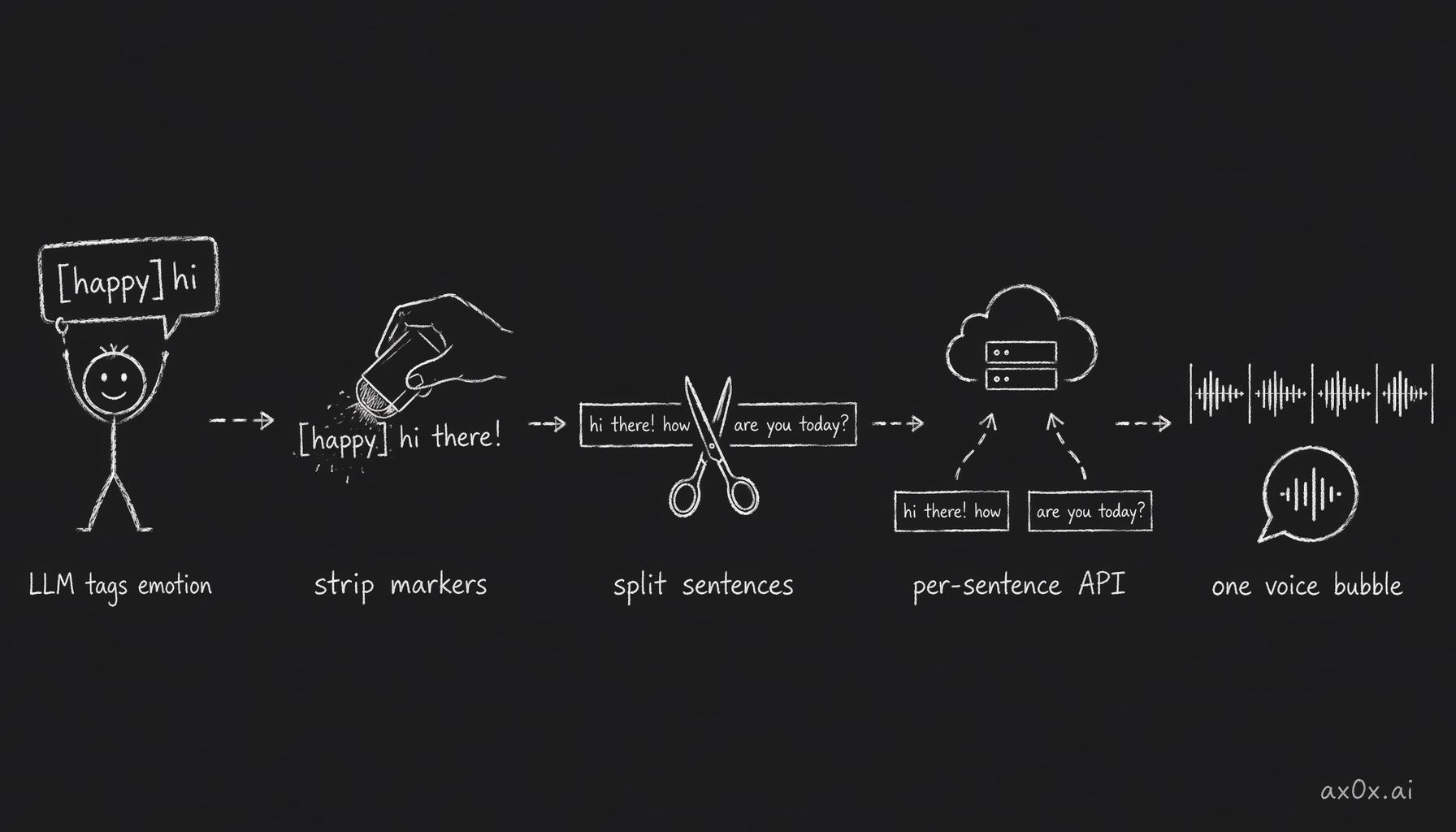 Volcano v2 emotion pipeline: the LLM tags each line with emotion, markers are stripped from display, sentences are split, each hits the API with its own emotion context, then the MP3 chunks concatenate into one voice bubble
Step 1. Create a Volcengine account
Go to console.volcengine.com.
Step 2. Enable the TTS service
Enable "语音合成" (Speech Synthesis). Get your App ID and Access Token from the console.
Step 3. Clone a voice (recommended)
Clone a voice in the Volcano console. Note the speaker ID — it starts with S_ (e.g. S_EVeoGUVU1). Without a cloned voice, use a built-in speaker like zh_female_linzhiling_mars_bigtts.
Step 4. Add to openclaw.json
{
  messages: {
    tts: {
      auto: "tagged", // "tagged" = LLM decides when to voice; "always" = every reply
      provider: "volcano",
      volcano: {
        appId: "YOUR_VOLC_APP_ID",          // or set env VOLC_TTS_APP_ID
        accessKey: "YOUR_VOLC_ACCESS_KEY",   // or set env VOLC_TTS_ACCESS_TOKEN
        version: "v2",                        // REQUIRED for emotion control
        speaker: "YOUR_CLONED_VOICE_ID",     // e.g. "S_EVeoGUVU1"
        // resourceId auto-defaults to "volc.seedicl.default" for v2
      },
    },
  },
}
Step 5. Restart the gateway
kill -USR1 $(pgrep -f openclaw) # hot reload
Step 6. Verify
/tts status
Expected output: Provider: volcano v2 (configured).
Test with:
/tts audio [开心]你好呀!
Config fields
| Field | Env fallback | Default | Description |
|---|---|---|---|
appId | VOLC_TTS_APP_ID | — | Volcano application ID |
accessKey | VOLC_TTS_ACCESS_TOKEN | — | Volcano access token |
version | — | "v1" | Must be "v2" for emotion control |
resourceId | — | "volc.seedicl.default" | Model resource. Auto-detected from ID patterns if not set explicitly |
speaker | — | "zh_female_linzhiling_mars_bigtts" | Speaker or cloned voice ID. Cloned voices use S_ prefix |
Emotion marker syntax
The LLM uses three styles (all passed to context_texts):
Emotion labels (short keywords):
[开心]你好呀!今天天气真好!
[伤心]可是我的猫生病了。
[愤怒]这太过分了!
Voice commands (descriptive instructions):
[用温柔甜蜜的声音]晚安,好梦。
[用冷淡不耐烦的语气]随便你吧。
[用激动兴奋的声音]我们赢了!
Context descriptions (scene narration):
[她正在生气地质问对方]你到底去哪儿了?
[他刚收到好消息非常开心]太好了,我通过了!
Data flow (end to end)
LLM generates: "[开心]你好呀![伤心]我好难过。"
       |
       v
Step 1: System prompt hint — told LLM to use [brackets]
       |
       v
Step 2: Payload processing — strips [markers] from visible
       |                      text, keeps them for TTS input
       v
Step 3: TTS dispatch — detects v2, enters v2 path
       |
       v
Step 4: Emotion parsing — splits into segments
       |    segment 1: { emotion: "开心", text: "你好呀!" }
       |    segment 2: { emotion: "伤心", text: "我好难过。" }
       v
Step 5: Per-segment API calls with emotion context
       |    POST .../api/v3/tts/unidirectional
       |    req_params.additions = {"context_texts":["开心"]}
       v
Step 6: Buffer concatenation — merges MP3 buffers into one file
       |
       v
Single voice bubble on Telegram (audioAsVoice: true)
User sees: "你好呀!我好难过。" (no brackets)
API details
Endpoint (same for v1 and v2):
POST https://openspeech.bytedance.com/api/v3/tts/unidirectional
Request body per segment:
{
  "user": { "uid": "tts-client" },
  "req_params": {
    "text": "你好呀!今天天气真好!",
    "speaker": "S_EVeoGUVU1",
    "audio_params": { "format": "mp3", "sample_rate": 24000 },
    "additions": "{\"context_texts\":[\"开心\"]}"
  }
}
Response: streaming binary MP3 chunks (parsed from JSON-framed response, base64 data field).
Differences from v1
| v1 | v2 | |
|---|---|---|
| Resource ID | seed-tts-1.0 | volc.seedicl.default |
| Emotion control | None | context_texts per sentence |
| Output | Single audio, no emotion | Concatenated segments with emotion |
| Telegram voice bubble | No (MP3, not voice-compatible) | Yes (voiceCompatible: true) |
| Marker stripping | [brackets] stripped | Stripped from display, preserved for TTS |
Gotchas
version: "v2"is required. Without it, you get v1 behavior (no emotion, no voice bubble).context_textsonly affects the first sentence per API call. This is why the framework splits into per-sentence calls.[bracket]markers must NOT be stripped before TTS. They are only stripped from the visible text shown to the user.- MP3 output is voice-compatible on Telegram. v2 sets
voiceCompatible: truefor the round voice bubble.
4. ElevenLabs Setup
Step 1. Get an API key
Sign up at elevenlabs.io and get your API key from the dashboard.
Step 2. Pick a voice
Browse the voice library or clone your own. Copy the voice ID.
Step 3. Add to openclaw.json
{
  messages: {
    tts: {
      auto: "always",
      provider: "elevenlabs",
      elevenlabs: {
        apiKey: "YOUR_ELEVENLABS_API_KEY",   // or set env ELEVENLABS_API_KEY
        voiceId: "YOUR_ELEVENLABS_VOICE_ID",
        modelId: "eleven_multilingual_v2",
        voiceSettings: {
          stability: 0.5,
          similarityBoost: 0.75,
          style: 0.0,
          useSpeakerBoost: true,
          speed: 1.0,
        },
      },
    },
  },
}
Step 4. Restart the gateway
kill -USR1 $(pgrep -f openclaw) # hot reload
Step 5. Verify
/tts status
Expected output: Provider: elevenlabs (configured).
Test with:
/tts audio Hello from ElevenLabs
Config fields
| Field | Env fallback | Description |
|---|---|---|
apiKey | ELEVENLABS_API_KEY / XI_API_KEY | ElevenLabs API key |
baseUrl | — | Override API base URL (default: https://api.elevenlabs.io) |
voiceId | — | Voice ID from ElevenLabs |
modelId | — | Model (e.g. eleven_multilingual_v2) |
seed | — | Integer 0..4294967295 (best-effort determinism) |
applyTextNormalization | — | auto, on, or off |
languageCode | — | 2-letter ISO 639-1 (e.g. en, de) |
voiceSettings.stability | — | 0..1 — lower = more expressive |
voiceSettings.similarityBoost | — | 0..1 — higher = closer to original |
voiceSettings.style | — | 0..1 |
voiceSettings.useSpeakerBoost | — | true or false |
voiceSettings.speed | — | 0.5..2.0 (1.0 = normal) |
Output formats
- Telegram: Opus voice note (
opus_48000_64— 48kHz / 64kbps, required for the round bubble). - Other channels: MP3 (
mp3_44100_128— 44.1kHz / 128kbps).
5. OpenAI TTS Setup
Step 1. Get an API key
Go to platform.openai.com and create an API key.
Step 2. Add to openclaw.json
{
  messages: {
    tts: {
      auto: "always",
      provider: "openai",
      openai: {
        apiKey: "YOUR_OPENAI_API_KEY",  // or set env OPENAI_API_KEY
        model: "gpt-4o-mini-tts",
        voice: "alloy",                 // alloy, echo, fable, onyx, nova, shimmer
      },
    },
  },
}
Step 3. Restart the gateway
kill -USR1 $(pgrep -f openclaw) # hot reload
Step 4. Verify
/tts status
Expected output: Provider: openai (configured).
Test with:
/tts audio Hello from OpenAI
Config fields
| Field | Env fallback | Description |
|---|---|---|
apiKey | OPENAI_API_KEY | OpenAI API key |
model | — | TTS model (e.g. gpt-4o-mini-tts) |
voice | — | Voice: alloy, echo, fable, onyx, nova, shimmer |
Output formats
- Telegram: Opus voice note (
opusformat). - Other channels: MP3 (
mp3format).
6. Edge TTS Setup (No API Key)
Edge TTS uses Microsoft Edge's online neural TTS service via the node-edge-tts library. No API key required. This is the simplest provider to set up and the default when no other API keys are configured.
Step 1. Add to openclaw.json
{
  messages: {
    tts: {
      auto: "always",
      provider: "edge",
      edge: {
        enabled: true,
        voice: "en-US-MichelleNeural",
        lang: "en-US",
        outputFormat: "audio-24khz-48kbitrate-mono-mp3",
        rate: "+10%",
        pitch: "-5%",
      },
    },
  },
}
Step 2. Restart the gateway
kill -USR1 $(pgrep -f openclaw) # hot reload
Step 3. Verify
/tts status
Expected output: Provider: edge (configured).
Test with:
/tts audio Hello from Edge TTS
Config fields
| Field | Default | Description |
|---|---|---|
enabled | true | Allow Edge TTS usage |
voice | en-US-MichelleNeural | Edge neural voice name |
lang | en-US | Language code |
outputFormat | audio-24khz-48kbitrate-mono-mp3 | Edge output format (see Microsoft docs) |
rate | — | Speed adjustment (e.g. +10%, -20%) |
pitch | — | Pitch adjustment (e.g. -5%, +10%) |
volume | — | Volume adjustment (e.g. +50%) |
saveSubtitles | — | Write JSON subtitles alongside audio |
proxy | — | Proxy URL for Edge TTS requests |
timeoutMs | — | Request timeout override (ms) |
Gotchas
- Edge TTS is a public web service without a published SLA or quota. Treat it as best-effort.
- Not all
outputFormatvalues are supported by the Edge service. If the configured format fails, the framework retries with MP3. - Telegram
sendVoiceaccepts OGG/MP3/M4A. Use OpenAI or ElevenLabs if you need guaranteed Opus voice notes.
To disable Edge TTS entirely
{
  messages: {
    tts: {
      edge: {
        enabled: false,
      },
    },
  },
}
7. Fallback Configuration
If multiple providers are configured, the framework uses the selected provider first and falls back to others automatically.
Example: OpenAI primary with ElevenLabs fallback
{
  messages: {
    tts: {
      auto: "always",
      provider: "openai",
      summaryModel: "openai/gpt-4.1-mini",
      openai: {
        apiKey: "YOUR_OPENAI_API_KEY",
        model: "gpt-4o-mini-tts",
        voice: "alloy",
      },
      elevenlabs: {
        apiKey: "YOUR_ELEVENLABS_API_KEY",
        voiceId: "YOUR_ELEVENLABS_VOICE_ID",
        modelId: "eleven_multilingual_v2",
      },
    },
  },
}
Provider priority (when provider is unset)
If provider is not specified, the framework picks automatically:
openai(ifOPENAI_API_KEYis set)elevenlabs(ifELEVENLABS_API_KEYis set)edge(always available, no key needed)
Auto-summary for long replies
When TTS is enabled and a reply exceeds maxLength (default: 1500 chars), the framework summarizes it first using summaryModel, then converts the summary to audio.
{
  messages: {
    tts: {
      auto: "always",
      maxTextLength: 4000,       // hard cap for TTS input (chars)
      timeoutMs: 30000,          // request timeout (ms)
      summaryModel: "openai/gpt-4.1-mini",
    },
  },
}
To disable auto-summary:
/tts summary off
Auto-TTS behavior
When enabled, the framework:
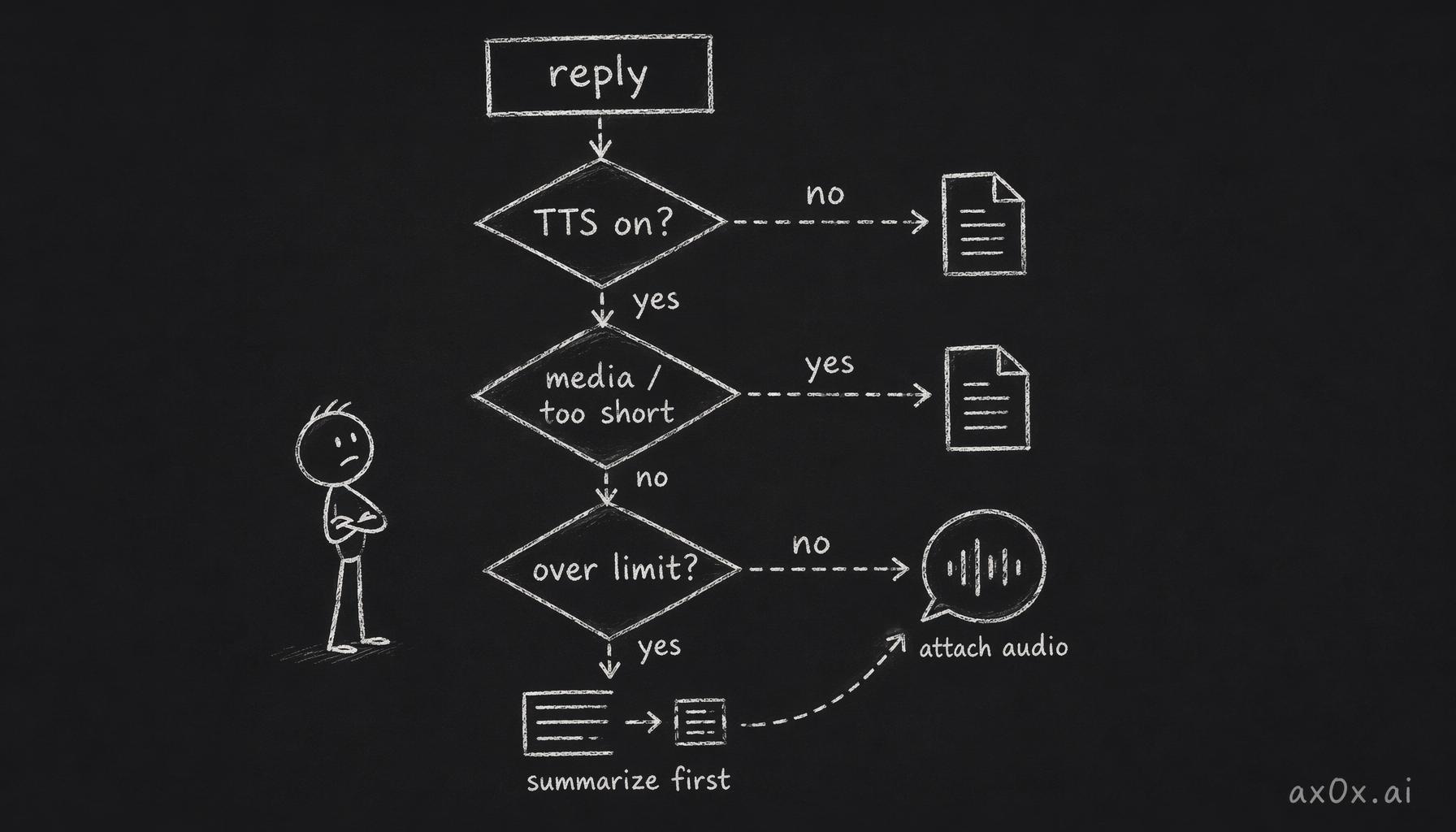 The auto-TTS decision loop: each reply is checked for whether TTS is on, whether it is too short or has media, and whether it exceeds the limit — long replies get summarized before audio, everything else goes out as text
- Skips TTS if the reply already contains media or a
MEDIA:directive. - Skips very short replies (< 10 chars).
- Summarizes long replies when enabled.
- Attaches the generated audio to the reply.
Flow diagram
Reply -> TTS enabled?
  no  -> send text
  yes -> has media / MEDIA: / short?
          yes -> send text
          no  -> length > limit?
                   no  -> TTS -> attach audio
                   yes -> summary enabled?
                            no  -> send text
                            yes -> summarize -> TTS -> attach audio
Model-driven overrides
By default, the model can emit [[tts:...]] directives to override the voice for a single reply:
Here you go.

[[tts:voiceId=pMsXgVXv3BLzUgSXRplE model=eleven_v3 speed=1.1]]
[[tts:text]](laughs) Read the song once more.[[/tts:text]]
To enable provider switching via model directives:
{
  messages: {
    tts: {
      modelOverrides: {
        enabled: true,
        allowProvider: true,
      },
    },
  },
}
To disable all model overrides:
{
  messages: {
    tts: {
      modelOverrides: {
        enabled: false,
      },
    },
  },
}
8. Slash Commands Reference
Single command: /tts (Discord: /voice, since /tts is a built-in Discord command).
| Command | Effect |
|---|---|
/tts off | Disable auto-TTS for this session |
/tts always | Enable auto-TTS for every reply (alias: /tts on) |
/tts inbound | Only voice-reply after an inbound voice note |
/tts tagged | Only voice-reply when the LLM emits [[tts]] tags |
/tts status | Show current TTS provider and configuration |
/tts provider openai | Switch provider (openai / elevenlabs / edge / volcano / fishaudio) |
/tts limit 2000 | Set summary threshold (chars) |
/tts summary off | Disable auto-summary for long replies |
/tts audio Hello | Generate a one-off audio reply (does not toggle TTS on) |
Notes:
- Commands require an authorized sender (allowlist/owner rules still apply).
commands.textor native command registration must be enabled.off|always|inbound|taggedare per-session toggles.limitandsummaryare stored in local prefs, not the main config.
Per-user preferences
Slash commands write local overrides to a local preferences file.
Stored fields: enabled, provider, maxLength, summarize.
These override messages.tts.* for that host.
9. Troubleshooting Checklist
No audio output at all:
- Is TTS enabled? Check
autois not"off". Run/tts status. - Is the provider configured? Check the provider-specific section has required fields.
- Are API keys set? Check
openclaw.jsonor environment variables. - Is the reply too short? TTS skips replies under 10 chars.
- Does the reply contain media? TTS skips replies with existing media or
MEDIA:directives.
Audio but no emotion (Volcano v2):
- Is
version: "v2"set? Check/tts statusshowsvolcano v2, not justvolcano. - Is the LLM generating
[bracket]markers? Check the system prompt includes emotion instructions. - Are markers being stripped before TTS? They should only be stripped from visible text.
Voice sent as document, not voice bubble (Telegram):
- Fish Audio: output should be
.ogg— checkvoiceCompatible: true. - Volcano v2: MP3 output should have
voiceCompatible: true. - OpenAI/ElevenLabs: Telegram format should be Opus.
[brackets] showing in the user-visible text:
- For Volcano v2: the emotion marker stripping step should remove them from display text.
- For non-Volcano providers:
[brackets]are not supported and will be spoken literally.
Duplicate voice messages:
- The TTS tool returns "Audio delivered. Do not re-send." to prevent the LLM from re-sending via the message tool.
Edge TTS fails silently:
- Edge TTS is a public service without SLA. It may be rate-limited or down.
- Check if the configured
outputFormatis supported. The framework retries with MP3 on failure.
The story behind this one is at OpenClaw Field Notes.