
Self-Hosted Proxy Runbook: Full-Stack VLESS-Reality + Subscription Server Setup
About this series: Each post in this series is a complete technical runbook — not a story, but instructions for an agent to execute directly. Copy the runbook, replace the placeholders (
YOUR_VPS_IP,your.domain.com,YOUR_SSH_PORT, etc.), hand it to Claude Code, and let it run. The story behind this one is at Shipping with Claude Code.
Self-Hosted Proxy: A Complete Guide from Zero to Working
This document covers a complete self-hosted proxy setup: VPS selection, protocol configuration, SSL certificates, subscription server, and client configuration. Intended for developers with basic Linux familiarity.
Table of Contents
- VPS Selection and Initial Setup
- Lesson One: Shadowsocks Gets Blocked
- The Right Approach: sing-box Multi-Protocol Deployment
- BBR Network Acceleration
- SSL Certificate Setup
- Subscription Server Setup (nginx)
- Node Naming and Config Cleanup
- Clash Verge Client Configuration (macOS)
- Troubleshooting Log
- Verification Checklist
1. VPS Selection and Initial Setup
1.1 What to Look for in a VPS
There are a few core criteria:
- IP quality: Static residential IPs are significantly more resistant to blocking than datacenter IPs. Atlas Networks offers residential IPs in Seattle and Los Angeles — worth considering.
- Route quality: For traffic from mainland China to the US, AS9929 and CN2 GIA are the best options — low latency, avoids backbone congestion. Standard AS4837 is noticeably worse.
- Bandwidth and monthly transfer: At minimum 100 Mbps, 1 TB/month to start.
- SSH port: Some providers use non-standard ports by default (e.g.,
YOUR_SSH_PORT). Check your provisioning email.
VPS configuration used in this guide:
| Parameter | Value |
|---|---|
| Provider | Atlas Networks |
| Location | Los Angeles, AS9929 network |
| IP | YOUR_VPS_IP |
| SSH Port | YOUR_SSH_PORT |
| OS | Ubuntu 24.04.1 LTS |
| Monthly Transfer | 3 TB |
1.2 Initial SSH Login
ssh root@YOUR_VPS_IP -p YOUR_SSH_PORT
After logging in, do a few baseline tasks:
# Update the system
apt-get update && apt-get upgrade -y

# Install common tools
apt-get install -y curl wget vim git unzip net-tools

# Set timezone to UTC for consistency
timedatectl set-timezone UTC

# Confirm OS version
lsb_release -a
1.3 Security Hardening (Optional but Recommended)
# Disable password login (set up your public key first before doing this)
vim /etc/ssh/sshd_config
# Make sure these two lines are present:
# PasswordAuthentication no
# PubkeyAuthentication yes

# Restart SSH
systemctl restart sshd

# Enable firewall (ufw), allow only needed ports
ufw allow YOUR_SSH_PORT/tcp   # SSH
ufw allow 80/tcp      # HTTP (acme validation / nginx)
ufw allow 443/tcp     # HTTPS (nginx)
ufw allow 16796/tcp   # VLESS-Reality
ufw allow 18877/udp   # Hysteria2
ufw allow 31227/udp   # TUIC-v5
ufw allow 2082/tcp    # Vmess-WS (optional)
ufw enable
ufw status
VPS Provider Gotcha: Some providers ship with
PubkeyAuthentication noin sshd_config. If key-based auth fails after copying your public key, check and fix this first:grep PubkeyAuthentication /etc/ssh/sshd_config # If it shows "no", fix it: sed -i 's/^PubkeyAuthentication no/PubkeyAuthentication yes/' /etc/ssh/sshd_config systemctl restart sshd
2. Lesson One: Shadowsocks Gets Blocked
2.1 Original Deployment
The initial setup used Docker to run shadowsocks-rust:
docker run -d \
--name ss-rust \
--restart always \
-p 8388:8388/tcp \
-p 8388:8388/udp \
-e PASSWORD="your_password" \
ghcr.io/shadowsocks/ssserver-rust:latest \
ssserver -s "0.0.0.0:8388" -m "aes-256-gcm" -k "your_password" --udp-only false
Configuration:
- Port: 8388
- Cipher: aes-256-gcm
2.2 Result
The IP was blocked by GFW within hours.
Port connections timed out immediately; the server was unreachable from mainland China.
2.3 Root Cause
Shadowsocks (as well as unobfuscated VMess and plain Socks5) are "bare protocols." GFW's traffic probes will:
- Send active probe packets to suspicious ports
- Analyze traffic entropy (encrypted traffic has very high entropy)
- Identify proxy protocols via traffic fingerprinting
- Block the port or the entire IP
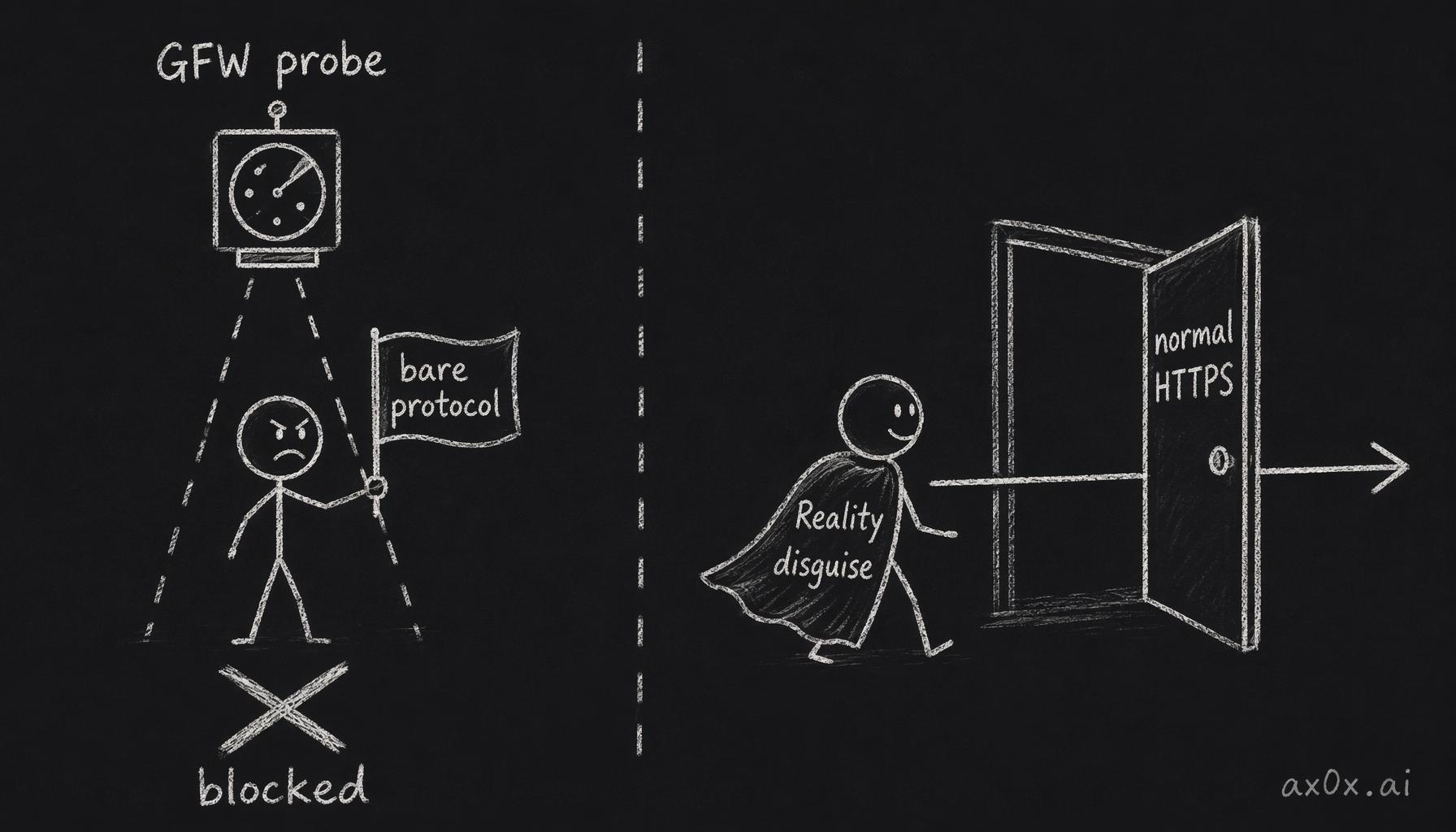 GFW blocks bare protocols via active probing and entropy analysis, while VLESS-Reality slips through disguised as normal HTTPS
Key takeaway: For IPs serving mainland China users, never run SS/VMess/Socks5 without obfuscation. You must use modern protocols with traffic disguise capabilities.
3. The Right Approach: sing-box Multi-Protocol Deployment
3.1 Why sing-box
sing-box is the most mature multi-protocol proxy core available. It supports:
- VLESS + Reality: Borrows a real website's TLS fingerprint. GFW cannot distinguish proxy traffic from normal HTTPS. Extremely resistant to blocking.
- Hysteria2: QUIC/UDP-based, fast, ideal for high-bandwidth scenarios.
- TUIC v5: Also UDP-based, low latency.
3.2 Using yonggekkk's One-Click Script
This script installs sing-box and configures 5 protocols automatically.
# One-click install
bash <(wget -qO- https://raw.githubusercontent.com/yonggekkk/sing-box-yg/main/sb.sh)
After the first run, the script is saved to /root/sb.sh. After that you can use the sb shortcut to open the management menu.
3.3 Installation Process
After running the script, an option menu appears. Select option 1 (install) from the menu, then press Enter for defaults on subsequent prompts.
The script will automatically:
- Install the sing-box service
- Generate configurations for 5 protocols
- Write systemd service files
- Start the service
Warning: The sing-box installation script may remove
ufwduring setup. If you configured firewall rules before installing sing-box, verify they still exist after installation. The iptables default policy is ACCEPT (no firewall), which is acceptable for a dedicated proxy VPS but worth noting.
3.4 The 5 Protocols
After installation, the server runs the following 5 inbound protocols:
| Protocol | Default Port | Transport | Block Resistance | Notes |
|---|---|---|---|---|
| VLESS-Reality-Vision | (random) | TCP | ★★★★★ | First choice — disguises as HTTPS |
| Vmess-WebSocket | (random) | TCP | ★★ | Weakest — not recommended for daily use |
| Hysteria2 | (random) | UDP | ★★★★ | Fastest |
| TUIC-v5 | (random) | UDP | ★★★★ | Low latency |
| Anytls | (random) | TCP | ★★★★ | TLS mimicry, newer protocol |
Note: The script randomizes ports on each install for security. Check the output after installation to see your actual port assignments. Do not assume the defaults from older guides.
3.5 Reviewing the Generated Config Files
# All config files are stored here
ls /etc/s-box/
# Clash Mihomo client config (contains all nodes)
cat /etc/s-box/clmi.yaml
# sing-box client config
cat /etc/s-box/sbox.json
3.6 Verifying the Service
# Check sing-box service status
systemctl status sing-box
# Tail live logs
journalctl -u sing-box -f
# Confirm TCP ports are listening
ss -tlnp | grep -E "16796|2082"
# Note: Hysteria2 and TUIC are UDP — use ss -ulnp to check them
ss -ulnp | grep -E "18877|31227"
3.7 Common Management Commands
# Start / stop / restart
systemctl start sing-box
systemctl stop sing-box
systemctl restart sing-box
# View the server-side config generated by the script
cat /etc/s-box/sb.json
# Open the management menu via shortcut
sb
4. BBR Network Acceleration
BBR is Google's TCP congestion control algorithm. It significantly improves throughput and reduces latency for cross-border connections. Built into Linux kernel 4.9+.
4.1 Enable via sb.sh
# Open the management menu
sb
# Select option 11 (BBR acceleration)
4.2 Enable BBR Manually
# Check current kernel version (must be >= 4.9)
uname -r
# Edit sysctl config
cat >> /etc/sysctl.conf << 'EOF'
net.core.default_qdisc=fq
net.ipv4.tcp_congestion_control=bbr
EOF
# Apply the config
sysctl -p
# Verify it took effect
sysctl net.ipv4.tcp_congestion_control
# Expected output: net.ipv4.tcp_congestion_control = bbr
# Confirm the BBR module is loaded
lsmod | grep bbr
5. SSL Certificate Setup
The Reality protocol doesn't need an SSL certificate, but Hysteria2 and TUIC do. The nginx subscription server also needs HTTPS.
5.1 Prerequisite: DNS Configuration
Add an A record in Cloudflare for your domain:
Type: A
Name: sub (or whatever subdomain you want — nao, vpn, etc.)
IPv4 address: YOUR_VPS_IP (your VPS IP)
Proxy status: DNS only (gray cloud) — for initial certificate issuance
Important: Start with DNS-only (gray cloud) for the initial SSL certificate issuance via acme.sh. After the subscription server is fully configured (Section 6), enable Cloudflare proxy (orange cloud) on this record. This is critical because:
- Users in China cannot directly access your VPS IP to fetch the subscription URL
- Cloudflare's CDN is accessible from China and acts as a relay for the subscription endpoint
- The proxy connections (VLESS, Hysteria2, TUIC, etc.) use the direct VPS IP hardcoded in the config, so Cloudflare proxy does NOT interfere with them
- Only the subscription HTTP traffic goes through Cloudflare — the actual proxy traffic goes directly to the VPS
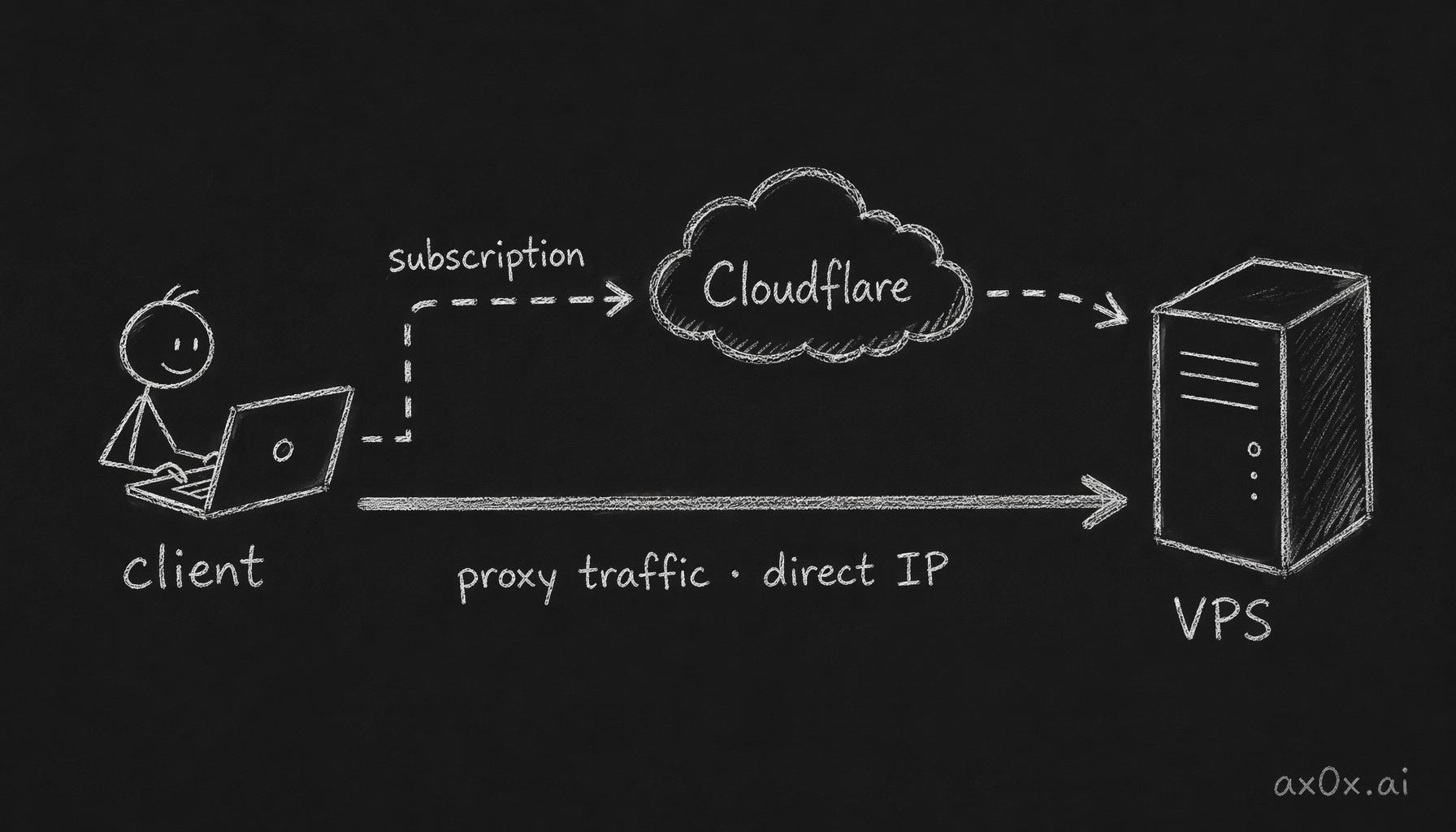 Subscription HTTP requests relay through Cloudflare's CDN while proxy traffic connects straight to the hardcoded VPS IP — two paths that never interfere
TL;DR: Gray cloud for cert issuance -> Orange cloud after subscription server is set up. The proxy protocols connect directly to the IP, not through the domain.
5.2 Get a Cloudflare API Token
- Log in to the Cloudflare Dashboard
- Go to
My Profile→API Tokens→Create Token - Use the template:
Edit zone DNS - Zone Resources: select your specific domain
- Create and save the token (shown only once)
5.3 Install acme.sh
# Install acme.sh (if the sb.sh script hasn't already done so)
curl https://get.acme.sh | sh -s email=your@email.com
# Activate environment variables
source ~/.bashrc
# Or use the full path directly
~/.acme.sh/acme.sh --version
5.4 Clear the acme.sh Cache (Important!)
This is a critical gotcha.
The sb.sh script calls acme.sh during execution and writes an incorrect email address into the account cache. If you don't clear it, subsequent certificate requests will fail or use the wrong account.
# Clear the bad account cache
rm -rf ~/.acme.sh/ca/ ~/.acme.sh/*.json
# Confirm it's clean
ls ~/.acme.sh/
5.5 Issue a Certificate
# Set your Cloudflare API Token
export CF_Token="YOUR_CLOUDFLARE_API_TOKEN"
# Issue an ECC certificate (smaller and faster than RSA)
~/.acme.sh/acme.sh --issue \
--dns dns_cf \
-d your.domain.com \
--ecc \
--server letsencrypt \
--accountemail "your@gmail.com" \
--force
# On success, certificate paths will be shown, similar to:
# /root/.acme.sh/your.domain.com_ecc/your.domain.com.cer
# /root/.acme.sh/your.domain.com_ecc/your.domain.com.key
# /root/.acme.sh/your.domain.com_ecc/fullchain.cer
Parameter notes:
--dns dns_cf: Use the Cloudflare DNS API for validation — no port 80 needed--ecc: Request an elliptic curve certificate--server letsencrypt: Use Let's Encrypt as the CA--force: Force re-issue even if the certificate hasn't expired
5.6 Install the Certificate to a Specific Path
# Create the target directory
mkdir -p /root/ygkkkca
# Install the certificate and configure auto-reload
~/.acme.sh/acme.sh --install-cert \
-d your.domain.com \
--ecc \
--cert-file /root/ygkkkca/cert.crt \
--key-file /root/ygkkkca/private.key \
--fullchain-file /root/ygkkkca/fullchain.crt \
--reloadcmd "systemctl restart sing-box"
This also sets up auto-renewal: 30 days before expiry, acme.sh will automatically issue a new certificate and run the --reloadcmd to restart the service.
5.7 Copy the Certificate to the sing-box Directory
# Copy the certificate to the path sing-box reads from
cp /root/ygkkkca/fullchain.crt /etc/s-box/cert.pem
cp /root/ygkkkca/private.key /etc/s-box/private.key
# Set correct permissions
chmod 600 /etc/s-box/private.key
# Restart sing-box to apply the new certificate
systemctl restart sing-box
# Verify sing-box is running
systemctl status sing-box
5.8 Verify the Certificate
# View certificate details
openssl x509 -in /root/ygkkkca/fullchain.crt -noout -text | grep -E "Subject:|Not After"
# List all certificates managed by acme.sh
~/.acme.sh/acme.sh --list
6. Subscription Server Setup (nginx)
Clients shouldn't need to update node configurations manually. By serving a subscription URL via nginx, Clash/sing-box clients can update with one click.
First confirm 80/443 aren't blocked by your provider. Some hosts (Taiwan-origin IP VPS, for one, tested) silently drop inbound 80/443 at the network edge while leaving high ports open. nginx will
listen 443and answer fine locally, yet be unreachable from outside. Test from an external machine after setup (see Issue 12 below). If 443 is blocked, serve the subscription on an open high port — the URL just carries the port (e.g.:2096). Proxy protocols use their own high ports and are unaffected.
6.1 Install nginx
apt-get install -y nginx
# Start and enable on boot
systemctl enable nginx
systemctl start nginx
systemctl status nginx
6.2 Generate a Random Subscription Token
The token is the path in the subscription URL — it acts as a password.
# Generate a 16-character random token
TOKEN=$(cat /proc/sys/kernel/random/uuid | tr -d "-" | head -c 16)
echo "Your token is: $TOKEN"
# Save the token so you don't lose it
echo $TOKEN > /etc/s-box/.sub_token
cat /etc/s-box/.sub_token
6.3 Update the Clash Config File
Before serving the config file through nginx, fix the certificate verification setting:
# Edit the Clash Mihomo client config
vim /etc/s-box/clmi.yaml
Find and change the following:
# Before:
skip-cert-verify: true
# After:
skip-cert-verify: false
# Also find the sni field and set it to your actual domain:
sni: your.domain.com
Using sed for bulk replacement is easier:
# Disable certificate verification skip
sed -i 's/skip-cert-verify: true/skip-cert-verify: false/g' /etc/s-box/clmi.yaml
# Check the result
grep "skip-cert-verify" /etc/s-box/clmi.yaml
6.4 Configure nginx
# Create the nginx site config
cat > /etc/nginx/sites-available/sub << EOF
server {
listen 80;
listen 443 ssl;
server_name your.domain.com;
ssl_certificate /root/ygkkkca/fullchain.crt;
ssl_certificate_key /root/ygkkkca/private.key;
ssl_protocols TLSv1.2 TLSv1.3;
ssl_ciphers HIGH:!aNULL:!MD5;
# Clash Meta subscription
location /$TOKEN {
alias /etc/s-box/clmi.yaml;
default_type "text/plain; charset=utf-8";
add_header Content-Disposition "inline";
}
# sing-box subscription
location /singbox/$TOKEN {
alias /etc/s-box/sbox.json;
default_type "application/json; charset=utf-8";
}
# Return 404 for all other paths (don't expose server info)
location / {
return 404;
}
}
EOF
Note: $TOKEN above needs to be replaced with the actual value. This approach is safer:
TOKEN=$(cat /etc/s-box/.sub_token)
cat > /etc/nginx/sites-available/sub << EOF
server {
listen 80;
listen 443 ssl;
server_name your.domain.com;
ssl_certificate /root/ygkkkca/fullchain.crt;
ssl_certificate_key /root/ygkkkca/private.key;
ssl_protocols TLSv1.2 TLSv1.3;
ssl_ciphers HIGH:!aNULL:!MD5;
location /${TOKEN} {
alias /etc/s-box/clmi.yaml;
default_type "text/plain; charset=utf-8";
}
location /singbox/${TOKEN} {
alias /etc/s-box/sbox.json;
default_type "application/json; charset=utf-8";
}
location / {
return 404;
}
}
EOF
6.5 Enable the Site
# Create symlink to enable the site
ln -sf /etc/nginx/sites-available/sub /etc/nginx/sites-enabled/sub
# Remove the default site (avoid conflicts)
rm -f /etc/nginx/sites-enabled/default
# Test config syntax
nginx -t
# Reload nginx
systemctl reload nginx
6.6 Traffic Usage Tracking
Clash and sing-box clients can display upload/download usage and remaining quota when the subscription response includes a Subscription-Userinfo header.
Install vnstat
apt-get install -y vnstat
systemctl enable vnstat
systemctl start vnstat
# Check your network interface name — don't copy ens3 from old guides
ip -o -4 route show to default | awk '{print $5}'
# Newer Ubuntu/KVM images are usually ens17; only older ones are ens3/eth0. Use the actual output.
Create the traffic tracking script
cat > /etc/s-box/update_traffic.sh << 'SCRIPT'
#!/bin/bash
IFACE="ens17" # Replace with your REAL interface (check the ip route command above; don't assume ens3)
MONTHLY_LIMIT_GB=3000 # Your monthly limit in GB (e.g., 3000 = 3TB)
MONTHLY_LIMIT_BYTES=$((MONTHLY_LIMIT_GB * 1073741824))
STATS=$(vnstat -i "$IFACE" --json m 2>/dev/null)
if [ -z "$STATS" ]; then
UPLOAD=0
DOWNLOAD=0
else
UPLOAD=$(echo "$STATS" | python3 -c "
import sys, json
data = json.load(sys.stdin)
months = data.get('interfaces', [{}])[0].get('traffic', {}).get('month', [])
print(months[-1].get('tx', 0) if months else 0)
" 2>/dev/null || echo 0)
DOWNLOAD=$(echo "$STATS" | python3 -c "
import sys, json
data = json.load(sys.stdin)
months = data.get('interfaces', [{}])[0].get('traffic', {}).get('month', [])
print(months[-1].get('rx', 0) if months else 0)
" 2>/dev/null || echo 0)
fi
EXPIRE=$(date -d "$(date +%Y-%m-01) +1 month" +%s 2>/dev/null || date -d "next month" +%s)
cat > /etc/s-box/.traffic_header.conf << EOF
add_header Subscription-Userinfo "upload=${UPLOAD}; download=${DOWNLOAD}; total=${MONTHLY_LIMIT_BYTES}; expire=${EXPIRE}";
EOF
SCRIPT
chmod +x /etc/s-box/update_traffic.sh
bash /etc/s-box/update_traffic.sh
Set up cron job
# Update traffic stats every 5 minutes
(crontab -l 2>/dev/null; echo "*/5 * * * * /bin/bash /etc/s-box/update_traffic.sh > /dev/null 2>&1") | crontab -
Update nginx config to include the header
Add include /etc/s-box/.traffic_header.conf; inside each subscription location block:
TOKEN=$(cat /etc/s-box/.sub_token)
cat > /etc/nginx/sites-available/sub << EOF
server {
listen 80;
listen 443 ssl;
server_name your.domain.com;
ssl_certificate /root/ygkkkca/fullchain.crt;
ssl_certificate_key /root/ygkkkca/private.key;
ssl_protocols TLSv1.2 TLSv1.3;
ssl_ciphers HIGH:!aNULL:!MD5;
location /${TOKEN} {
alias /etc/s-box/clmi.yaml;
default_type "text/plain; charset=utf-8";
add_header Content-Disposition "inline";
include /etc/s-box/.traffic_header.conf;
}
location /singbox/${TOKEN} {
alias /etc/s-box/sbox.json;
default_type "application/json; charset=utf-8";
include /etc/s-box/.traffic_header.conf;
}
location / {
return 404;
}
}
EOF
nginx -t && systemctl reload nginx
Clients will now display a usage bar with upload/download stats and remaining quota.
6.7 Verify the Subscription URL
TOKEN=$(cat /etc/s-box/.sub_token)
echo "Clash subscription URL: https://your.domain.com/${TOKEN}"
echo "Sing-box subscription URL: https://your.domain.com/singbox/${TOKEN}"
# Test locally (on the VPS)
curl -s "https://your.domain.com/${TOKEN}" | head -20
7. Node Naming and Config Cleanup
7.1 The Problem
The node names generated by sb.sh include a machine ID suffix, for example:
vless-reality-vision-C20260225127975
hysteria2-C20260225127975
These names look bad in the client and aren't intuitive.
7.2 Rename the Nodes
# Back up the original config
cp /etc/s-box/clmi.yaml /etc/s-box/clmi.yaml.bak
# Use sed to replace node names (adjust the regex to match your actual suffix)
sed -i "s/vless-reality-vision-C[0-9A-Za-z]*/⭐ VLESS-Reality Primary/g" /etc/s-box/clmi.yaml
sed -i "s/hysteria2-C[0-9A-Za-z]*/🚀 Hysteria2 Fast/g" /etc/s-box/clmi.yaml
sed -i "s/tuic-C[0-9A-Za-z]*/⚡ TUIC-v5 Low Latency/g" /etc/s-box/clmi.yaml
sed -i "s/vmess-ws-C[0-9A-Za-z]*/🔸 Vmess-WS Fallback/g" /etc/s-box/clmi.yaml
sed -i "s/anytls-C[0-9A-Za-z]*/🔒 Anytls Stealth/g" /etc/s-box/clmi.yaml
7.3 Remove Vmess-WS from the Auto-Select Group
Vmess-WS is the weakest of the 5 protocols and is easily fingerprinted by GFW. It should not appear in the automatic selection (url-test) group.
# View the current proxy-groups config
grep -A 20 "proxy-groups" /etc/s-box/clmi.yaml | head -30
Look for an auto-select group like this:
proxy-groups:
- name: Auto Select
type: url-test
proxies:
- ⭐ VLESS-Reality Primary
- 🚀 Hysteria2 Fast
- ⚡ TUIC-v5 Low Latency
- 🔸 Vmess-WS Fallback # delete this line
url: http://www.gstatic.com/generate_204
interval: 300
Manually edit the config to remove the Vmess-WS entry:
vim /etc/s-box/clmi.yaml
After editing, verify the YAML is valid:
python3 -c "import yaml; yaml.safe_load(open('/etc/s-box/clmi.yaml'))" && echo "YAML format is valid"
7.4 Apply the Changes
After modifying the config file served by nginx, clients will pick up the new config on their next subscription refresh — no need to restart sing-box.
If you modified sing-box-related settings (ports, certificate paths, etc.), restart the service:
systemctl restart sing-box
systemctl status sing-box
8. Clash Verge Client Configuration (macOS)
8.1 Install Clash Verge Rev
The Clash Verge Rev fork is recommended (the original Clash Verge is no longer maintained).
- Download: https://github.com/clash-verge-rev/clash-verge-rev/releases
- macOS users: download the
.dmgfile - Bundle ID:
io.github.clash-verge-rev.clash-verge-rev
Config file location:
~/Library/Application Support/io.github.clash-verge-rev.clash-verge-rev/
8.2 Import the Subscription
- Open Clash Verge
- Click the
Profilestab at the top - Click the
+button in the top right - Enter the subscription URL:
https://your.domain.com/YOUR_TOKEN - Click
Import - Click the newly imported profile card to activate it (an active card has a highlighted border)
Common issue: The proxy page only shows DIRECT and REJECT, no nodes → the profile is not activated. Click the profile card again.
8.3 Basic Settings
| Setting | Recommended Value | Notes |
|---|---|---|
| System Proxy | Enabled | Routes system traffic through Clash |
| Mode | Rule | Routes by rules; domestic traffic bypasses the proxy |
| TUN Mode | Optional | More complete traffic capture, handles apps that ignore system proxy |
| Mixed Port | 7897 | HTTP/SOCKS5 mixed port (default) |
8.4 Proxy Group Configuration
In the Clash Verge proxy page, the recommended setup is:
- GLOBAL: Select
Auto Select - Auto Select (url-test): Contains VLESS-Reality, Hysteria2, TUIC-v5 — automatically picks the lowest latency
- Manual: For when you need to switch to a specific node
8.5 Connection Test
# Test from macOS terminal
curl -x socks5://127.0.0.1:7897 https://www.google.com -I
# Or use the HTTP proxy port
curl -x http://127.0.0.1:7897 https://ip.me
Browse to https://ip.me in your browser and confirm it shows the VPS IP (YOUR_VPS_IP).
8.6 Updating the Subscription
When the server-side config changes, click the refresh button on the profile card in Clash Verge's Profiles tab.
9. Troubleshooting Log
This section documents every issue encountered during deployment.
Issue 1: Shadowsocks / Bare VMess Blocked Immediately
Symptom: A few hours after deploying SS, the IP was blocked and the port became unreachable.
Cause: GFW actively probes ports suspected of running proxies. SS traffic is highly identifiable (high entropy, no TLS handshake).
Fix: Switch to VLESS-Reality or Hysteria2. These protocols either mimic real TLS (Reality) or run over QUIC (Hysteria2), making them very difficult for GFW to distinguish.
Conclusion: For VPS serving mainland China, SS/VMess without obfuscation is a dead end.
Issue 2: acme.sh Cached the Wrong Email
Symptom: Running acme.sh to issue a certificate fails with an account email mismatch error, or the issuance fails entirely.
Cause: The sb.sh script called acme.sh internally and cached an incorrect email address in ~/.acme.sh/ca/. When you later call acme.sh manually, the cached bad account causes a conflict.
Fix:
rm -rf ~/.acme.sh/ca/ ~/.acme.sh/*.json
Then re-issue the certificate with the --accountemail and --force flags.
Issue 3: Cloudflare Proxy (Orange Cloud) — Nuanced Usage
Symptom: acme.sh DNS validation passes but the certificate issuance fails, or users in China cannot fetch the subscription URL.
Cause: Cloudflare's DNS Proxy (orange cloud) hides your domain's real IP and routes traffic through Cloudflare nodes. This can interfere with initial certificate issuance, but is actually beneficial for the subscription endpoint.
Fix: Use gray cloud (DNS only) during initial certificate issuance with acme.sh. After the subscription server is fully set up, switch to orange cloud (proxy enabled). The proxy protocols (VLESS, Hysteria2, TUIC, Anytls) connect directly to the VPS IP hardcoded in the config — Cloudflare proxy only affects the subscription HTTP traffic, not the actual proxy connections.
Issue 4: Hysteria2 and TUIC are UDP Protocols
Symptom: Testing the Hysteria2 port with nc -zv YOUR_IP 18877 or telnet YOUR_IP 18877 shows Connection refused or timeout, even though the service is actually running fine.
Cause: nc -zv and telnet default to TCP. Hysteria2 (18877) and TUIC (31227) are UDP protocols, so TCP probes will always fail.
Verification:
# Test using nc in UDP mode
nc -zuv YOUR_IP 18877
# Or check listening ports on the server
ss -ulnp | grep -E "18877|31227"
Issue 5: Clash Verge Proxy Page Only Shows DIRECT/REJECT
Symptom: After importing the subscription, the proxy page only shows DIRECT and REJECT — no nodes.
Cause: The subscription was imported but not activated. Clash Verge supports multiple config files simultaneously; you must click a config card to activate it.
Fix: Go back to the Profiles tab and click the newly imported profile card. When the card shows a highlighted border, it's active. Return to the proxy page and the nodes will appear.
Issue 6: Vmess-WS Should Not Be in the Auto-Select Group
Symptom: The auto-select group occasionally switches to the Vmess-WS node, causing high latency. It also has the weakest block resistance.
Cause: Vmess-WS has the most identifiable traffic fingerprint of the 5 protocols. It works reasonably well with CDN routing, but is easily detected on direct connections.
Fix: Remove Vmess-WS from the url-test group's proxies list. Keep only VLESS-Reality, Hysteria2, and TUIC-v5.
Issue 7: Certificate Path Must Be Synced Manually
Symptom: acme.sh renews the certificate successfully, but sing-box keeps using the old one. Hysteria2/TUIC connections report certificate errors.
Cause: acme.sh's --reloadcmd restarts sing-box, but the certificate is installed to /root/ygkkkca/ while sing-box reads from /etc/s-box/cert.pem. The two paths are not in sync.
Fix: Include the copy step in the reloadcmd:
~/.acme.sh/acme.sh --install-cert \
-d your.domain.com \
--ecc \
--cert-file /root/ygkkkca/cert.crt \
--key-file /root/ygkkkca/private.key \
--fullchain-file /root/ygkkkca/fullchain.crt \
--reloadcmd "cp /root/ygkkkca/fullchain.crt /etc/s-box/cert.pem && cp /root/ygkkkca/private.key /etc/s-box/private.key && systemctl restart sing-box"
Issue 8: Clash Verge Config Resets After Restart
Symptom: After restarting Clash Verge, previously hand-edited node settings are lost or the config reverts to default.
Cause: If you edit config content directly inside Clash Verge (rather than importing via subscription URL), a restart may overwrite your local edits.
Fix: Make all node renaming and config optimizations in the server-side YAML file and distribute them via the subscription URL. The client's only job is to pull and use the config — never edit the client locally.
Issue 9: PubkeyAuthentication Disabled by VPS Provider
Symptom: After copying your SSH public key to the server, key-based auth silently fails and you're still prompted for a password.
Cause: Some VPS providers ship with PubkeyAuthentication no in their default sshd_config.
Fix:
grep PubkeyAuthentication /etc/ssh/sshd_config
# If it shows "no", fix it:
sed -i 's/^PubkeyAuthentication no/PubkeyAuthentication yes/' /etc/ssh/sshd_config
systemctl restart sshd
As a workaround, use sshpass for initial setup until key auth is fixed.
Issue 10: sing-box Script Removes ufw
Symptom: After running the sb.sh install script, previously configured ufw firewall rules are gone and ufw status reports the command is not found.
Cause: The sb.sh script may uninstall ufw as part of its setup process.
Fix: Verify firewall rules after installation. For a dedicated proxy VPS, the iptables default policy of ACCEPT (no firewall) is acceptable. If you need firewall rules, reinstall ufw and reconfigure after sing-box is set up.
Issue 11: Subscription URL Unreachable from China
Symptom: Users in China cannot fetch the subscription URL to import into their Clash/sing-box client — the connection times out because they need a proxy to reach the VPS in the first place.
Cause: The VPS IP may be slow or partially blocked for direct HTTP access from China.
Fix: Enable Cloudflare proxy (orange cloud) on the subscription domain's DNS record. Cloudflare's CDN is accessible from China and will relay the subscription HTTP request. The proxy configs contain the direct VPS IP for actual proxy connections (VLESS, Hysteria2, TUIC, Anytls), so Cloudflare's CDN does not interfere with the proxy traffic itself.
Issue 12: Provider Firewalls 80/443 at the Network Edge
Symptom: All sing-box proxy ports work, but the subscription URL won't load at all. On the server, ss -tlnp clearly shows nginx listening on 80 and 443.
Cause: Some hosting providers (Taiwan-origin IP VPS, tested) drop inbound 80/443 upstream of your machine. nginx answers locally (curl localhost:443 returns 404 = it's responding), and the box has no firewall (ufw inactive, iptables ACCEPT), yet two independent external networks still can't reach 80/443 — proof the block is at the provider edge, not on the host.
Fix: Always test from outside, not just on the server.
# Run from your own machine, NOT on the server (nc -G is macOS/BSD; on Linux use -w)
for p in 443 2096 YOUR_TCP_PORT; do nc -z -G6 YOUR_IP $p && echo "$p open" || echo "$p blocked"; done
# TCP probe only — UDP proxy ports (Hysteria2/TUIC) need `nc -zuv` (see Issue 4)
Two fixes:
Quick: add an open high port to nginx's listen lines (e.g. 2096) and hand out the subscription with that port: https://your.domain.com:2096/TOKEN. After editing, use systemctl restart nginx (not reload — reload keeps old listener sockets bound until workers drain). Proxy protocols run on their own high ports, unaffected.
Clean (preferred — also fixes "China can't fetch the sub"): keep the high port as the origin, then put the subscription subdomain behind Cloudflare orange cloud + an Origin Rule that rewrites the origin port. Clients hit a clean https://your.domain.com/TOKEN on Cloudflare's 443; CF connects to your origin on the open port. Requires an API token with Zone > Origin Rules > Edit, and the zone's SSL mode must be Full-class (it already is if other proxied records work).
# 1) flip the subscription record to orange cloud
curl -s -X PATCH ".../zones/$ZID/dns_records/$RID" -H "Authorization: Bearer $CF" --data '{"proxied":true}'
# 2) Origin Rule: CF -> origin on 2096
curl -s -X PUT ".../zones/$ZID/rulesets/phases/http_request_origin/entrypoint" \
  -H "Authorization: Bearer $CF" \
  --data '{"rules":[{"action":"route","action_parameters":{"origin":{"port":2096}},"expression":"(http.host eq \"sub.your.domain.com\")","enabled":true}]}'
Verify curl -sI https://your.domain.com/TOKEN shows server: cloudflare, cf-cache-status: DYNAMIC, HTTP 200. Proxy nodes connect by raw IP, so orange cloud never touches them.
Issue 13: Cloudflare Token Expired — Renewals Fail Silently
Symptom: The certificate expires months later, even though acme.sh's renewal cron "looks like" it's running.
Cause: The Cloudflare API token used at issuance expired or was revoked. acme renews by editing DNS through that token — once it dies, renewal fails, and nothing surfaces the error.
Fix: Verify the token before relying on it, and use a non-expiring token, not a temporary one. Don't use /user/tokens/verify — that user-scoped endpoint returns Invalid API Token for a valid zone-scoped token (false negative). A real zone read is the honest test:
# functional check, NOT /user/tokens/verify
curl -s "https://api.cloudflare.com/client/v4/zones?name=your-zone.com" \
  -H "Authorization: Bearer $CF_Token" | python3 -m json.tool
# proceed only if success: true AND result is non-empty
(A genuinely dead token fails both endpoints; a valid zone-scoped token fails only /user/tokens/verify.)
Adding a second node? Clone, don't rebuild. Once you have a working node, spinning up another is fastest by cloning: tar up
/etc/s-boxand move it over.sb.jsonand the sing-box binary are host-independent (they listen on::, Reality borrows a public SNI, certs are referenced by path), so they copy verbatim. Only three things are host-specific: the IP inside the client configs (sed-replace the old IP), the machine-ID suffix in node names, and a fresh certificate for the new domain. Far quicker than re-running the interactive installer, and no fat-fingered config drift.
10. Verification Checklist
Work through these in order. All passing means the service is healthy.
Server-Side Checks
# 1. sing-box service is running
systemctl is-active sing-box
# Expected output: active

# 2. All protocol ports are listening
ss -tlnp | grep -E "16796|2082"   # TCP ports
ss -ulnp | grep -E "18877|31227"   # UDP ports

# 3. BBR acceleration is enabled
sysctl net.ipv4.tcp_congestion_control
# Expected output: net.ipv4.tcp_congestion_control = bbr

# 4. SSL certificate is valid
openssl x509 -in /root/ygkkkca/fullchain.crt -noout -dates
# Confirm notAfter date is in the future

# 5. nginx is running
systemctl is-active nginx
# Expected output: active

# 6. Subscription URL is accessible
TOKEN=$(cat /etc/s-box/.sub_token)
curl -sk "https://your.domain.com/${TOKEN}" | head -5
# Expected: YAML config content (starting with proxies: etc.)

# 7. Certificate and private key match (both commands should output the same hash)
openssl x509 -in /etc/s-box/cert.pem -pubkey -noout | openssl sha256
openssl pkey -in /etc/s-box/private.key -pubout | openssl sha256
Client-Side Checks
# macOS - confirm system proxy is active
networksetup -getwebproxy Wi-Fi
# Expected output: Enabled: Yes, Server: 127.0.0.1, Port: 7897

# Test proxy connectivity
curl -x http://127.0.0.1:7897 https://ip.me
# Expected: shows the VPS IP (YOUR_VPS_IP)

# Test Google is reachable
curl -x http://127.0.0.1:7897 -I https://www.google.com
# Expected: HTTP/2 200
Clash Verge UI Checks
| Check | Expected State |
|---|---|
| Profiles tab → profile card | Highlighted border (activated) |
| Proxy tab → node list | Shows VLESS-Reality, Hysteria2, TUIC-v5, etc. |
| Settings → System Proxy | Enabled |
| Settings → Proxy Mode | Rule |
| Proxy tab → latency test | Each node shows a latency value, not timeout |
Auto-Renewal Verification
# View the acme.sh cron job
crontab -l | grep acme

# Dry-run the renewal process (no actual update)
~/.acme.sh/acme.sh --renew -d your.domain.com --ecc --dry-run
Appendix: Quick Reference
Common Commands
# sing-box management
sb                           # Open management menu
systemctl restart sing-box   # Restart service
journalctl -u sing-box -f    # Tail live logs

# Certificate management
~/.acme.sh/acme.sh --list    # List all certificates
~/.acme.sh/acme.sh --renew -d your.domain.com --ecc  # Manual renewal

# Subscription update (after modifying server-side config)
TOKEN=$(cat /etc/s-box/.sub_token)
echo "Clash subscription: https://your.domain.com/${TOKEN}"

# nginx operations
nginx -t                     # Test config
systemctl reload nginx        # Hot reload
Port Overview
| Service | Port | Protocol | Notes |
|---|---|---|---|
| SSH | YOUR_SSH_PORT | TCP | Server management |
| nginx HTTP | 80 | TCP | Redirect to HTTPS |
| nginx HTTPS | 443 | TCP | Subscription server |
| VLESS-Reality | (random) | TCP | Primary node — port randomized by installer |
| Vmess-WS | (random) | TCP | Fallback (not recommended as primary) |
| Hysteria2 | (random) | UDP | High-speed node |
| TUIC-v5 | (random) | UDP | Low-latency node |
| Anytls | (random) | TCP | TLS mimicry, newer protocol |
Note: Proxy ports are randomized on each install. Check the sb.sh output for actual assignments.
Important File Paths
| File | Purpose |
|---|---|
/etc/s-box/sb.json | sing-box server-side config |
/etc/s-box/clmi.yaml | Clash client subscription content |
/etc/s-box/sbox.json | sing-box client subscription content |
/etc/s-box/.sub_token | Subscription URL access token |
/root/ygkkkca/fullchain.crt | SSL certificate |
/root/ygkkkca/private.key | SSL private key |
/etc/nginx/sites-available/sub | nginx site config |
/etc/s-box/update_traffic.sh | Traffic stats update script |
/etc/s-box/.traffic_header.conf | Generated nginx header with traffic stats |
~/.acme.sh/ | acme.sh working directory |